Syncer
Syncer is the network-stability layer. Configure it after capture, controller output and timing are already working.
Network setup
Syncer uses a specific wired network layout. Your PC stays connected to the router normally, while a separate USB Ethernet adapter creates the direct Ethernet path from the PC to the console.
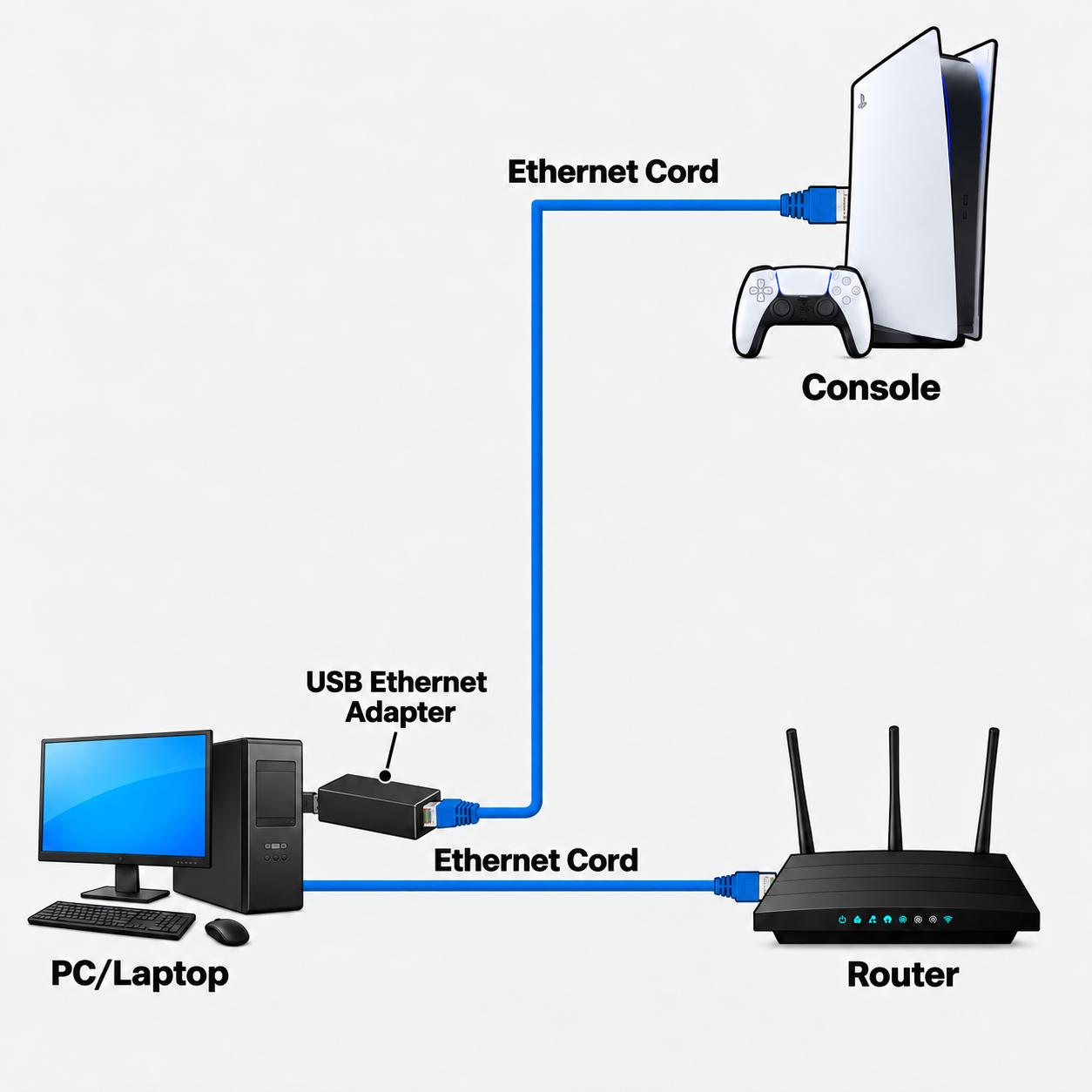
Connect everything
Connect the PC to your router
Connect the PC's normal Ethernet port to your router with an Ethernet cable.
Connect the USB Ethernet adapter
Plug the USB Ethernet adapter directly into the PC.
Connect the console
Run an Ethernet cable from the USB Ethernet adapter directly to the console.
Enable Internet Connection Sharing
Share the PC's normal internet connection to the USB Ethernet adapter so the console receives its network connection through the PC.
Confirm the console is online
Make sure the console has a working wired connection before starting Syncer.
Internet Connection Sharing guide
Follow the video below to configure Internet Connection Sharing on Windows.
Before starting Syncer
- Confirm Dilemma is already working normally.
- Confirm the console has internet access through the shared USB Ethernet connection.
- Keep both the PC and console on wired Ethernet.
- Make sure capture is stable around 60 FPS.
- Find your normal Dilemma timing before using Syncer.
Choose a mode
Dynamic
Previously called Legacy Syncer. Dynamic reacts to the detected network condition and uses Force (ms) as its primary tuning value.
Auto Delay
Previously called Marc Syncer. Auto Delay automatically manages the packet delay used by Syncer. For normal use, leave Use Advanced Options off.
Find your Syncer value
Find your normal timing first
Before enabling Syncer, find a stable normal timing value in MyCOURT. Do not use Syncer to replace the initial timing setup.
Dynamic: tune Force (ms)
Dynamic uses Force (ms) as its normal tuning value. If Syncer shots are consistently early, increase Force gradually. If you begin getting lates with no earlies, lower Force until you return to the stable range.
Auto Delay (Recommended for 2K27)
For normal Auto Delay use in 2K27, especially in REC / 5v5, leave Use Advanced Options off. Dilemma will use its default additional Syncer settings automatically.
Start Syncer
Select Dynamic or Auto Delay
Use Dynamic when you want to tune with Force (ms). For most REC / 5v5 use, select Auto Delay.
Start the Syncer
Allow Dilemma to initialize the Syncer worker.
Check Game Presence
For Dynamic, verify Dilemma detects the active online game/network session before evaluating the result.
Use Advanced Options only when needed
Leave Use Advanced Options off for the default additional Syncer settings. Turn it on only when you intentionally need to tune the advanced values.