Capture & Video
Configure the video source Dilemma will use to see the meter.
Settings every setup needs
Meter type, position, and color must match NBA 2K.
Close OBS, Elgato 4K Capture Utility, RECentral, Camera, and similar apps.
Choose your capture source
Capture source Capture Card
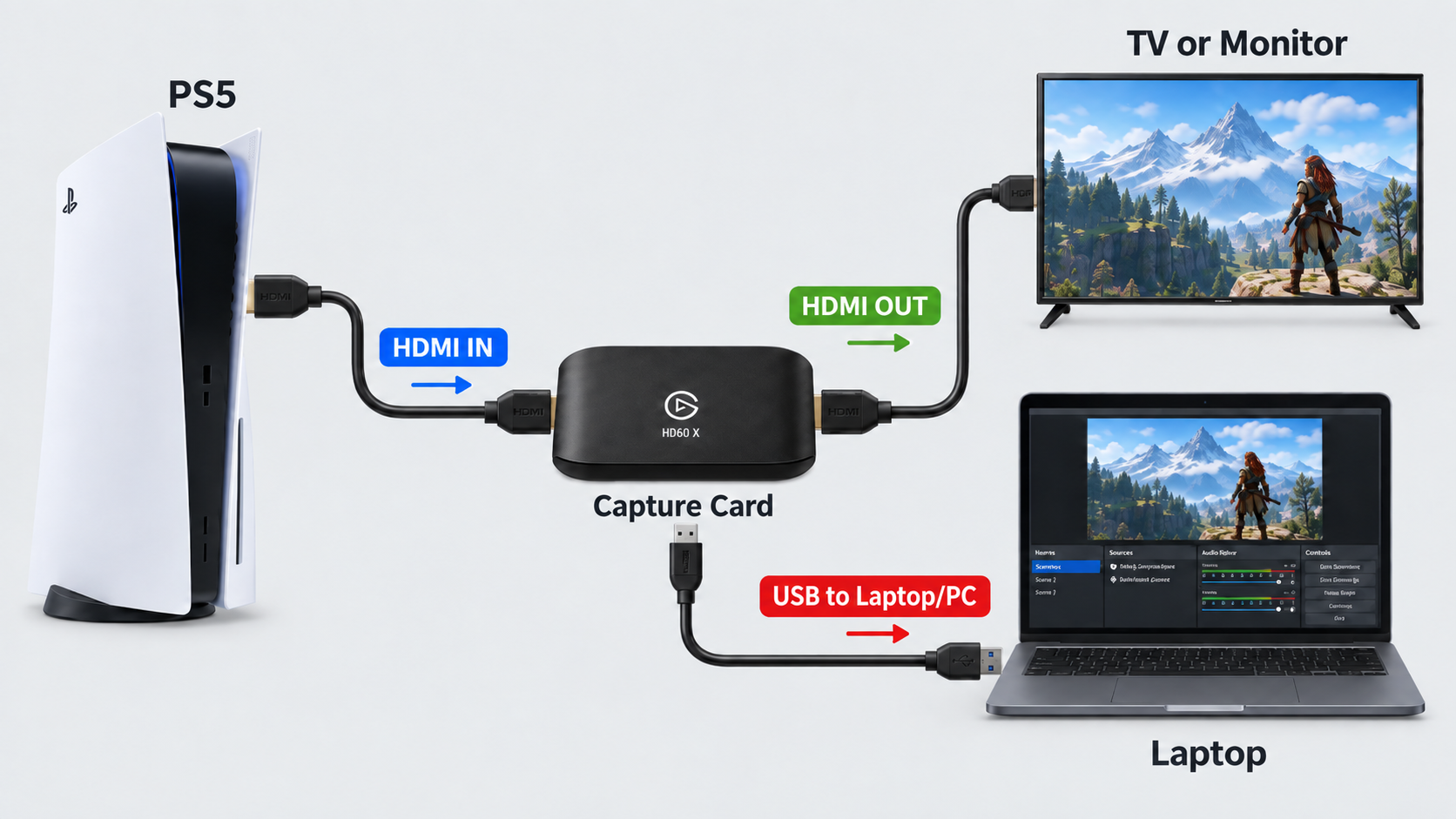
Choose your console settings
PlayStation 5
Settings → Screen and Video → Video Output → RGB Range → Full.
Disable HDCP when using an HDMI capture card.
Xbox Series X|S
Settings → General → TV & display options → Video fidelity & overscan → Color space. Start with PC RGB. If it produces crushed blacks, washed-out colors, or otherwise incorrect capture output, switch to Standard (recommended) and test again.
Capture source Window Capture Capture the Remote Play window on the PC.
- PS5: use Chiaki-ng or PS Remote Play.
- Xbox: use the Xbox Remote Play window. A second monitor is recommended; it can be a basic/cheap monitor.
- Keep the Remote Play window full screen and close to 60 FPS.
- Hardwire the PC and console, and close unnecessary apps/processes.
- PS5 Remote Play (Direct) cannot be used with Window Capture.
Open Remote Play full screen
PS5: open Chiaki-ng or PS Remote Play. Xbox: open Xbox Remote Play.
Enable Window Capture
Turn on Use Window Capture in Meter & Capture.
Select that Remote Play window
Choose the same window and confirm the live game appears in Dilemma.
Choose your console settings
PlayStation 5
Settings → Screen and Video → Video Output → RGB Range → Full.
Xbox Series X|S
Settings → General → TV & display options → Video fidelity & overscan → Color space. Start with PC RGB; use Standard (recommended) if the image looks incorrect.