Titan 2 — PS5
Choose your PS5 Titan 2 connection method.
PS5 · Remote Play PS5 + Titan 2
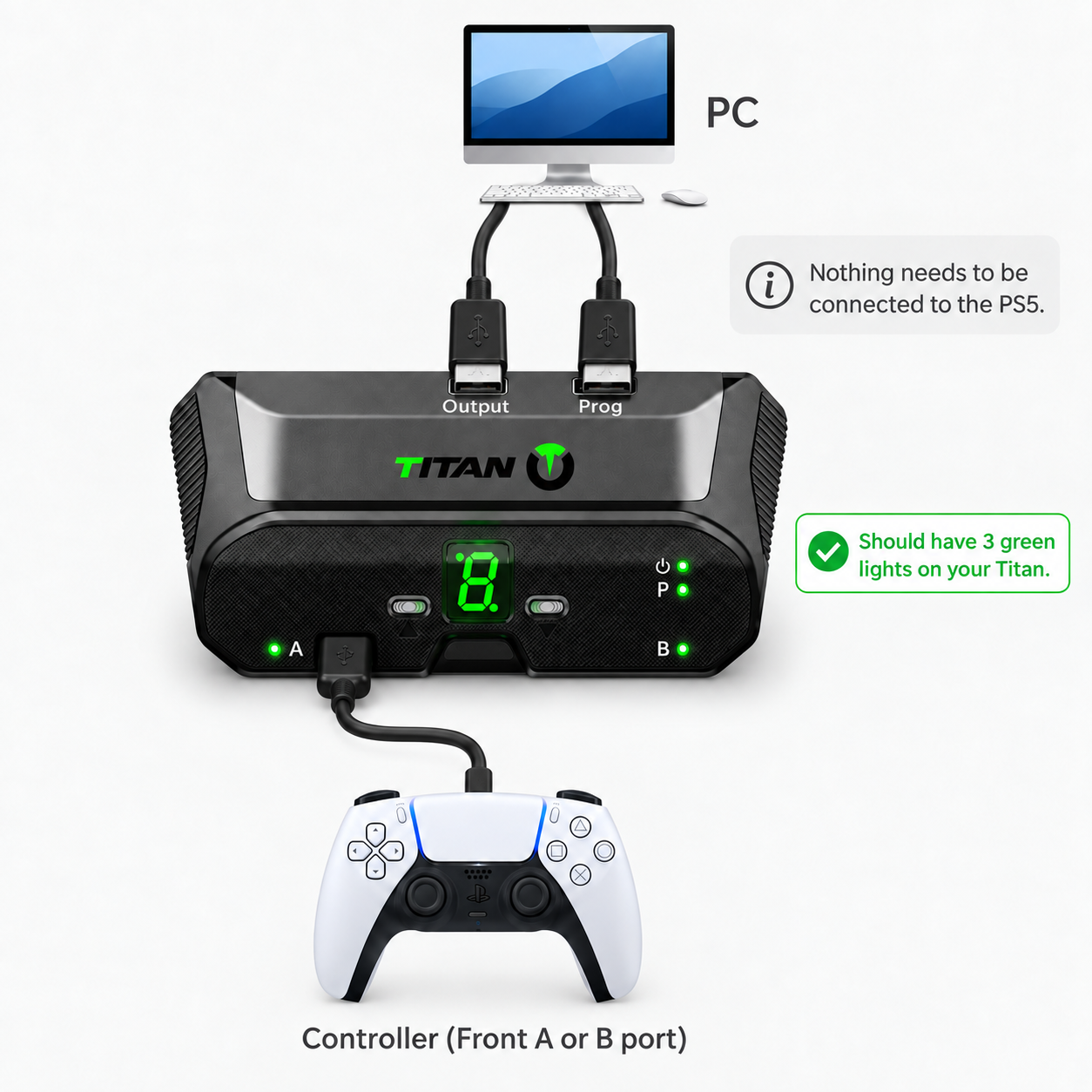
Set up PS5 Remote Play
This is the PS5 + Titan 2 method without a P5Mate, P5General, or Cronus Zen. Both the Titan 2 OUTPUT and PROG connections go to the PC as shown in the diagram. Nothing from the Titan 2 needs to be physically connected to the PS5.
Prepare the PS5
Enable Remote Play
On the PS5, go to Settings → System → Remote Play and enable Enable Remote Play.
Connect Titan 2 to the PC
Connect both the Titan 2 OUTPUT and PROG ports to the PC. Connect your controller to the Titan 2 front A or B port.
Choose a Remote Play client
Use either Chiaki-ng or Sony's official PS Remote Play application. You only need one of them running.
Remote Play optionChiaki-ngOpen these steps if you use Chiaki-ng.
Install Chiaki-ng on the same PC connected to your Titan 2.
Sign in with your PlayStation account and select your PS5 when it appears.
If Chiaki-ng asks for a registration code, go to PS5 Settings → System → Remote Play → Link Device and enter the displayed code in Chiaki-ng.
Connect to your registered PS5 in Chiaki-ng and leave the Remote Play session running.
Remote Play optionPS Remote PlayOpen these steps if you use Sony's official app.
Install Sony's PS Remote Play application on the PC.
Sign in with the same PlayStation account used on your PS5.
Select PS5 and allow the app to connect to your console.
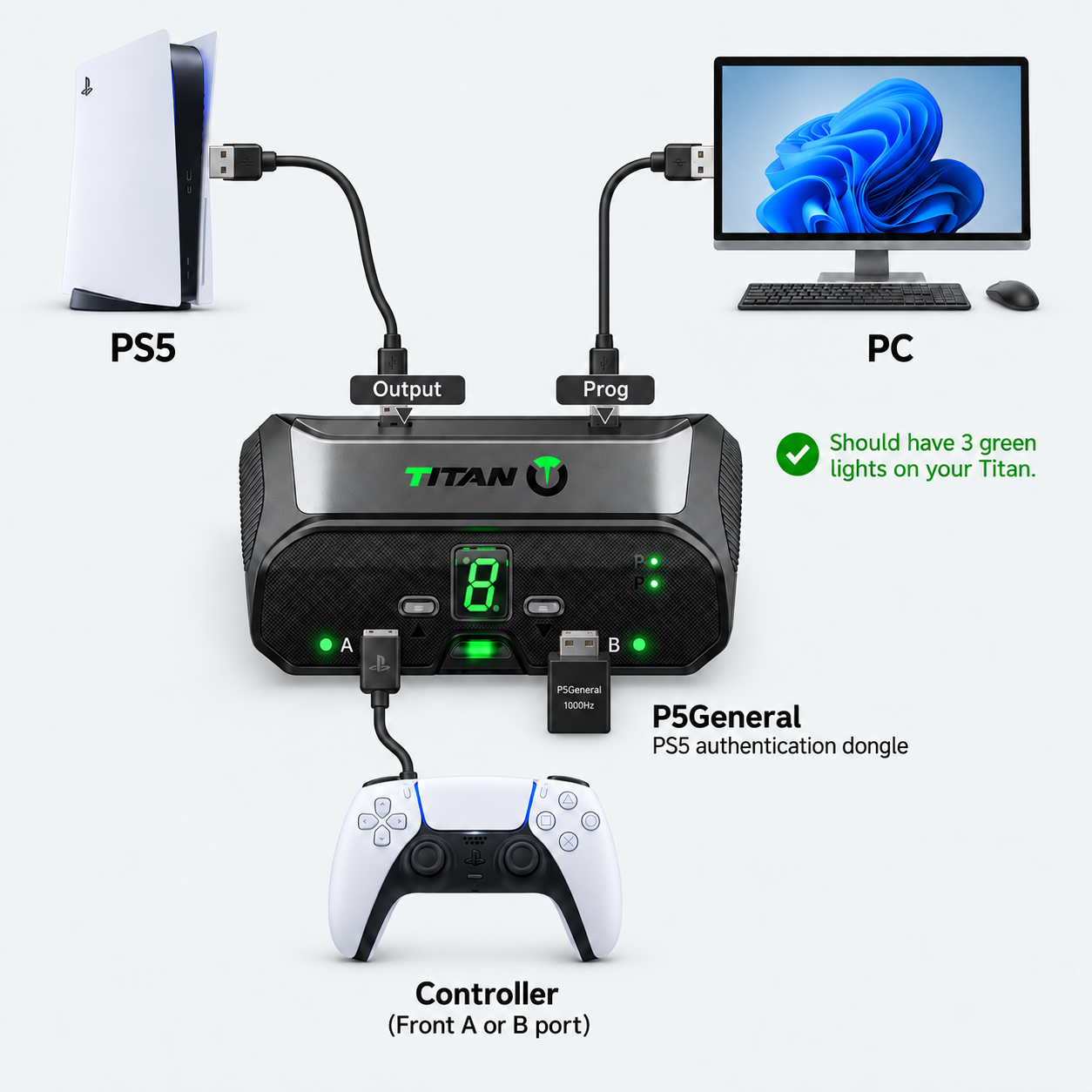
PS5 · Direct authentication PS5 + P5Mate / P5General
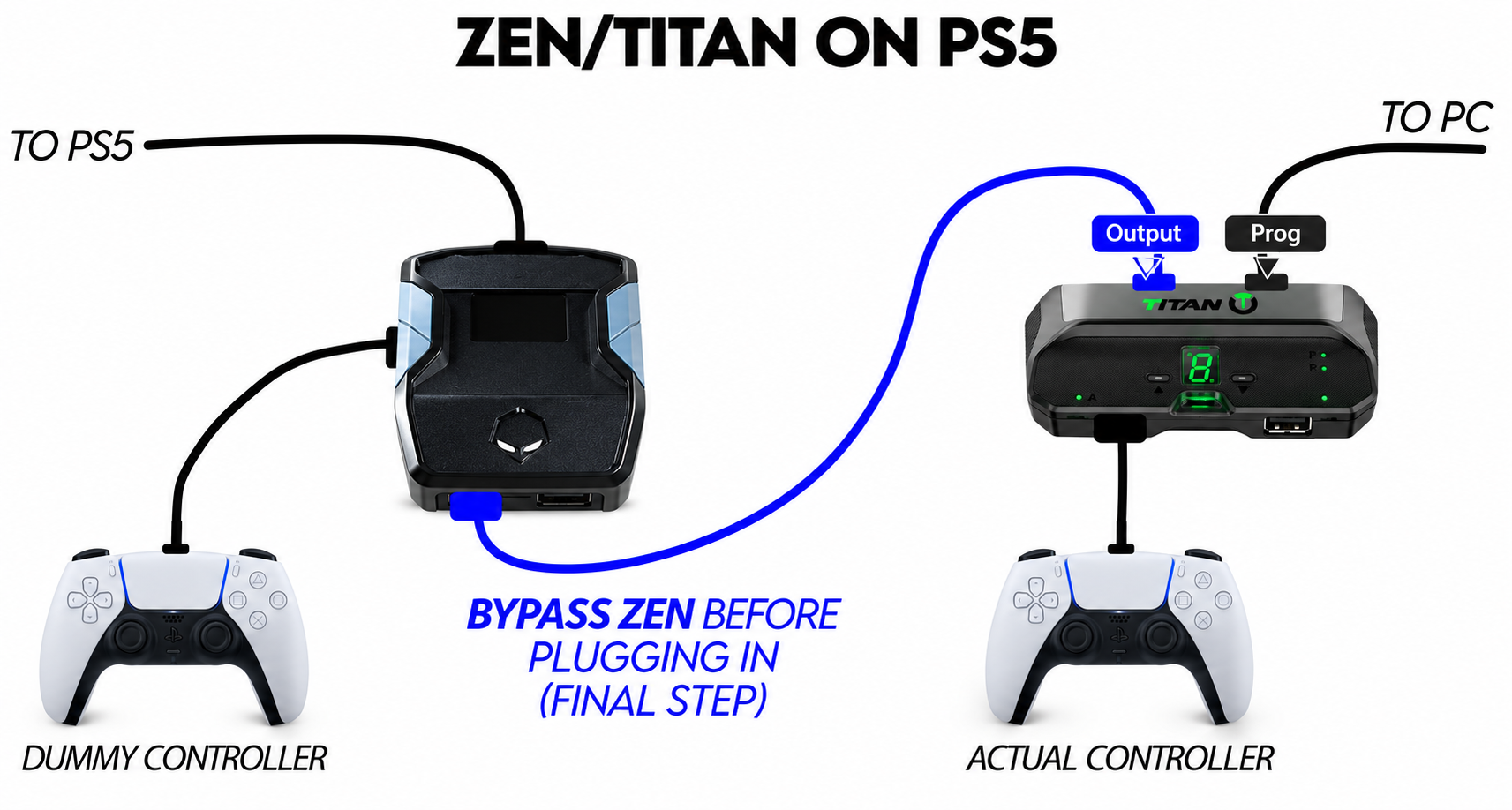
PS5 · Direct authentication PS5 + Cronus Zen
Configure Titan 2 in Dilemma
Set these values, then continue to Capture & Video. Do not start the script yet.
Output System: Titan 2
Output Protocol: PS5
Bridge Slot: Slot 1
Auto Install Bridge: On
DualSense Edge PS5 Fix: On for DualSense Edge
Leave it off for other controllers.